MinuteKeep Documentation
Welcome to MinuteKeep, your privacy-first corporate minute book management solution. This guide will help you get started and make the most of all features.
Installation
System Requirements
- macOS: macOS 10.15 (Catalina) or later
- Storage: 200 MB available space
- RAM: 4 GB minimum
Installing MinuteKeep
- Download the signed Mac installer from the purchase-success page
- Open the .dmg file and drag MinuteKeep to Applications
- Launch MinuteKeep from your applications menu
License Activation
When you first launch MinuteKeep, you'll be prompted to enter your license key.
- Copy your license key from the secure purchase-success page
- Enter the key in the format:
MKEEP-XXXX-XXXX-XXXX - Click "Activate License"
- Once activated, MinuteKeep will remember your license
Setting Up Your First Corporation
- After activation, click "Add Corporation" on the Corporations page
- Enter the corporation details:
- Legal name and any operating names
- Registration/incorporation number
- Jurisdiction (Canada, US, UK, or EU)
- Incorporation date
- Registered address
- Fiscal year-end
- Optionally upload a company logo
- Click "Save" to create the corporation
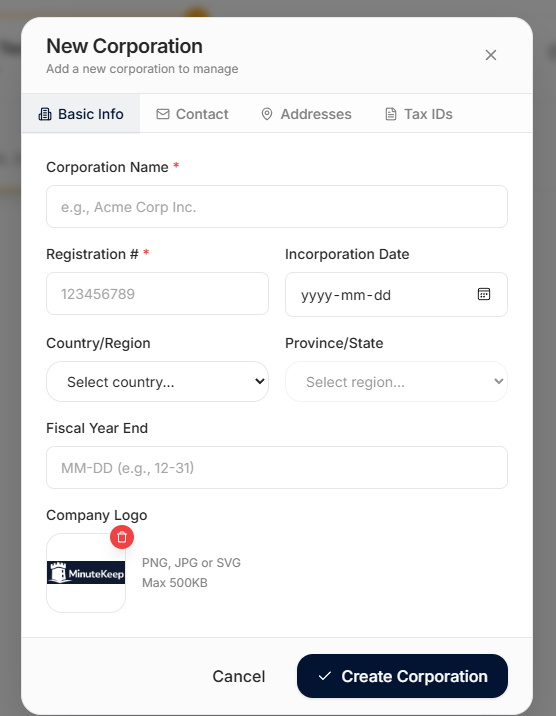
Your new corporation will appear in the corporation switcher at the top of the screen.
Dashboard
The Dashboard provides a quick overview of your selected corporation:
- Statistics: Number of corporations, meetings, resolutions, and pending items
- Recent Activity: Audit log of recent changes across all records
- Recent Meetings: Quick access to the latest meeting minutes
- Resolution Status: Visual breakdown of approved, pending, and executed resolutions
Click on any item to navigate directly to that record.
Managing Corporations
MinuteKeep supports unlimited corporations with complete separation of data.
Switching Corporations
Use the dropdown in the top navigation bar to switch between corporations. All data displayed will update to show records for the selected corporation.
Corporation Profile
Each corporation profile includes:
- Basic information (name, registration number, jurisdiction)
- Registered and business addresses
- Tax identifiers (Business Number, EIN, VAT, etc.)
- Fiscal year-end for compliance tracking
- Company logo for branded documents
Directors & Officers
Maintain a complete register of your corporation's directors and officers.
Adding a Director or Officer
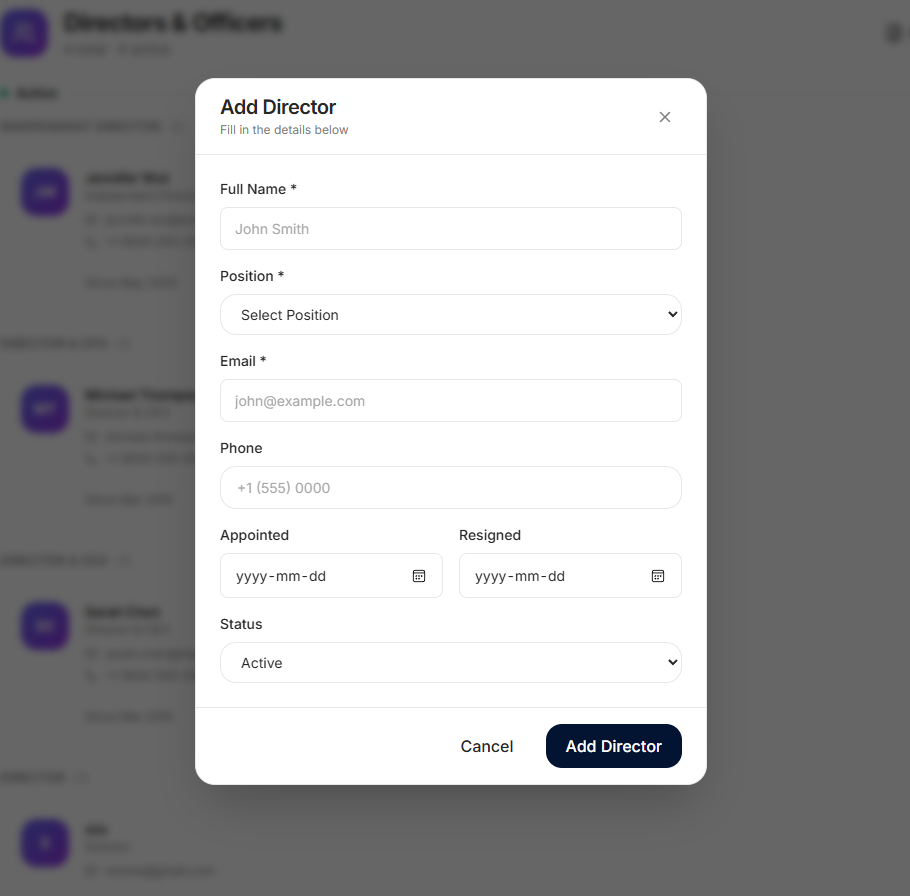
- Navigate to the Directors page
- Click "Add Director"
- Enter their details:
- Full legal name
- Role (CEO, CFO, Director, Independent Director, etc.)
- Contact information
- Appointment date
- Click "Save"
Recording Resignations
When a director resigns, edit their record and add a resignation date. They'll be moved to the "Former" section while maintaining the historical record.
Cap Table
Track share ownership, transactions, and ownership percentages.
Share Distribution
The cap table displays a visual pie chart of ownership distribution along with detailed shareholding records.
Recording Shareholdings
- Navigate to the Cap Table page
- Click "Add Shareholder"
- Enter:
- Shareholder name
- Share class (Common, Preferred, etc.)
- Number of shares
- Certificate number (optional)
- Voting and dividend rights
Share Transactions
Use the Registry tab to record share transactions:
- Allotment: Issuing new shares
- Transfer: Moving shares between shareholders
- Cancellation: Cancelling existing shares
Meeting Minutes
Document board meetings and shareholder meetings with structured minutes.
Recording a Meeting
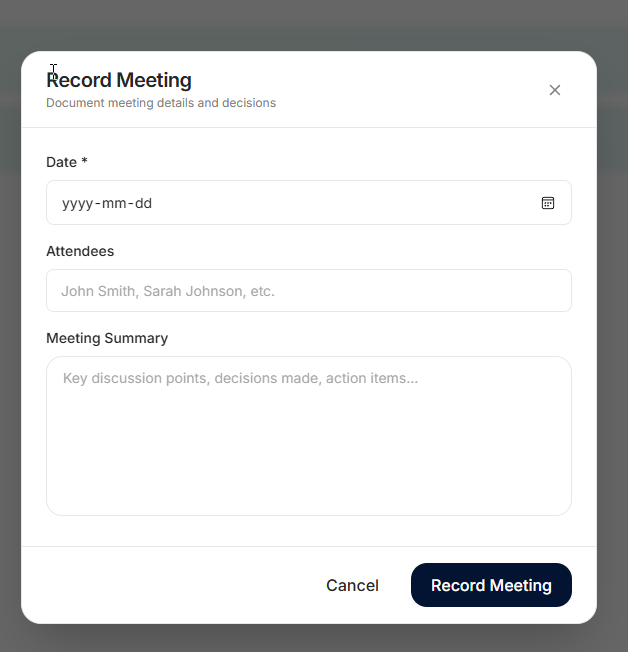
- Navigate to the Meetings page
- Click "Record Meeting"
- Select meeting type (Board or Shareholder)
- Enter meeting date and time
- Select attendees from your director/officer list
- Write the meeting minutes
- Link any related resolutions
Organization
Meetings are automatically organized by year and month. Use "Expand All" and "Collapse All" to navigate through your meeting history.
Resolutions
Track corporate resolutions through their lifecycle.
Resolution Status
- Pending: Resolution drafted but not yet approved
- Approved: Resolution passed by the board/shareholders
- Executed: Resolution implemented
- Rejected: Resolution not passed
Creating a Resolution
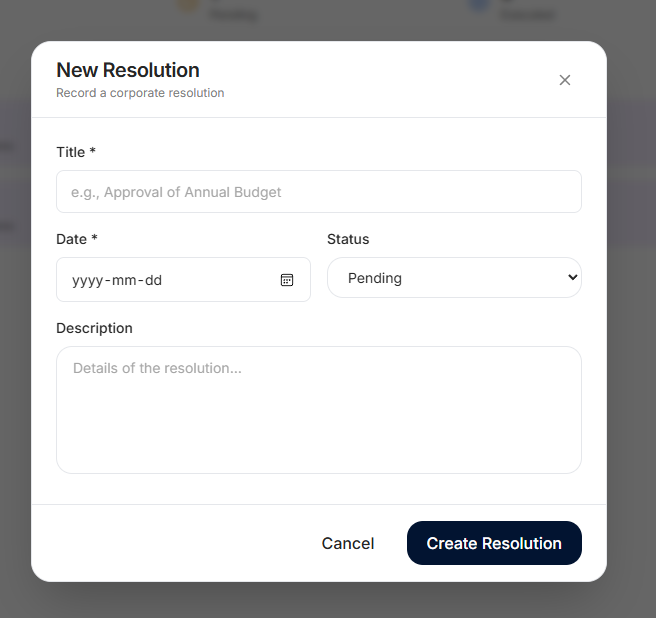
- Navigate to the Resolutions page
- Click "New Resolution"
- Enter the resolution title and full text
- Set the initial status
- Link to a meeting if applicable
Compliance Tracking
Never miss a filing deadline with jurisdiction-specific compliance tracking.
Compliance Calendar
The calendar view shows all compliance items color-coded by status:
- Green: Compliant
- Yellow: In Progress
- Red: Non-Compliant or Overdue
Adding Compliance Items
Click "Add Item" to create custom compliance requirements. You can also use pre-loaded templates for common filings in your jurisdiction.
Jurisdiction Templates
MinuteKeep includes compliance templates for:
- Canada: Annual returns, T2 corporate tax, GST/HST filings
- United States: Delaware franchise tax, BOI reporting, state annual reports
- United Kingdom: Confirmation statement, annual accounts, PSC register
- European Union: UBO register, trade register updates, annual accounts
Document Templates
MinuteKeep includes 100+ professionally drafted templates.
Template Categories
- Board Resolutions
- Meeting Minutes
- Director Appointments & Resignations
- Shareholder Notices
- Share Certificates
- Dividend Declarations
- Banking Resolutions
- And more...
Using Templates
- Navigate to the Templates page
- Filter by category or jurisdiction
- Click on a template to preview
- Fill in the placeholders (shown in [BRACKETS])
- Save to Documents or export as PDF
Document Management
Store and organize all corporate documents in one place.
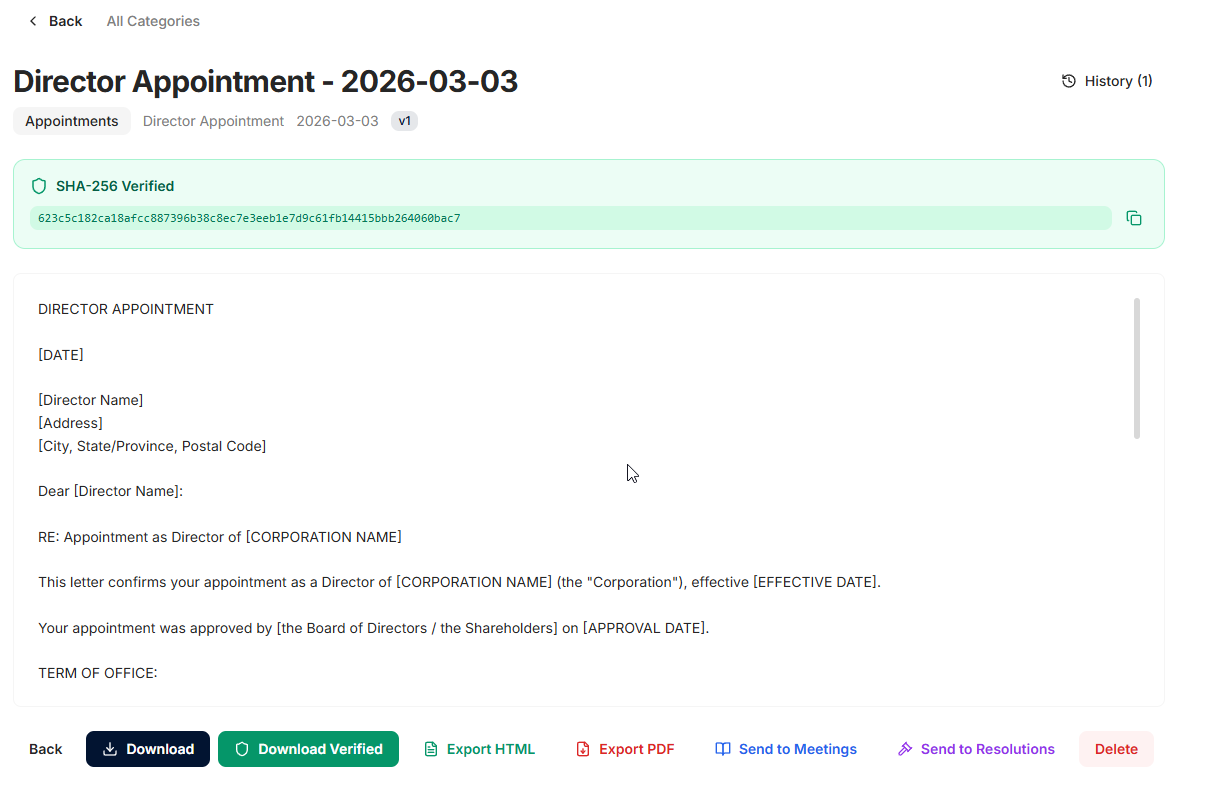
Document Categories
- Resolutions
- Minutes
- Appointments
- Resignations
- Share Certificates
- Compliance
- Contracts
- Other
Version Control
MinuteKeep automatically tracks document versions. Each edit creates a new version while preserving the complete history. Version integrity is protected with SHA-256 hashing.
Backup & Restore
Protect your data with regular backups.
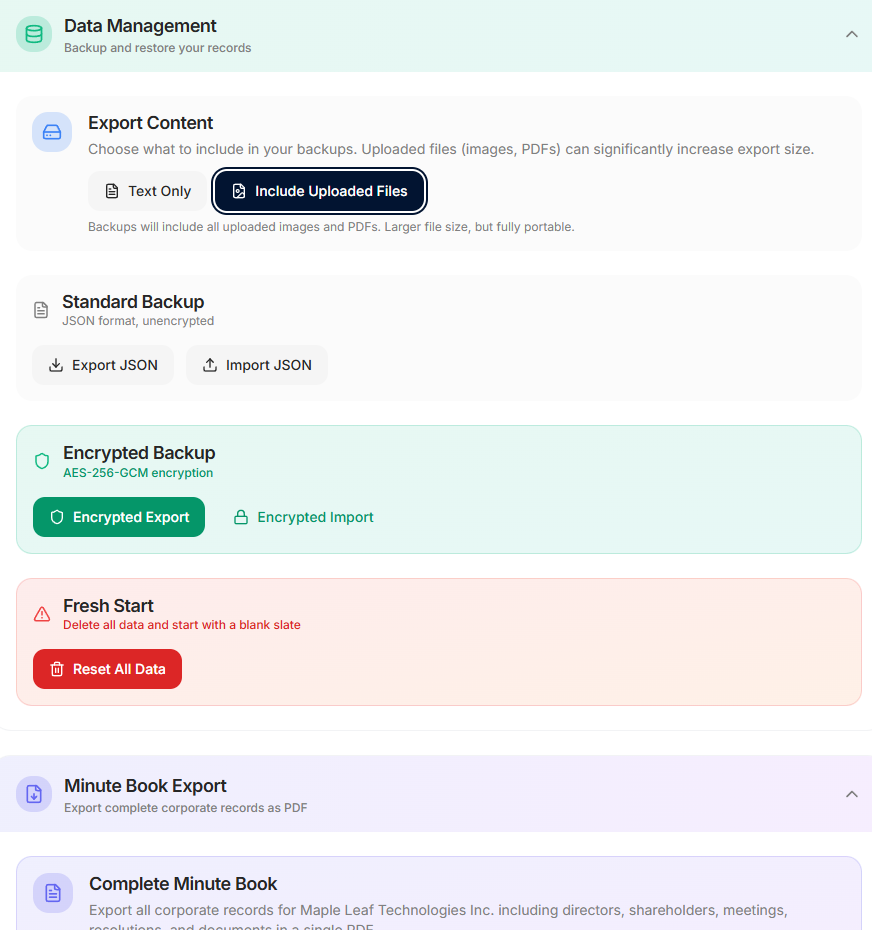
Creating a Backup
- Go to Settings > Data Management
- Choose backup type:
- Standard: JSON format, unencrypted
- Encrypted: AES-256-GCM encryption with password
- Click "Export"
- Choose a safe location to save the backup file
Restoring from Backup
- Go to Settings > Data Management
- Click "Import"
- Select your backup file
- Enter the password if encrypted
- Confirm the restore
Lock Screen
Protect access to your corporate records with the lock screen feature.
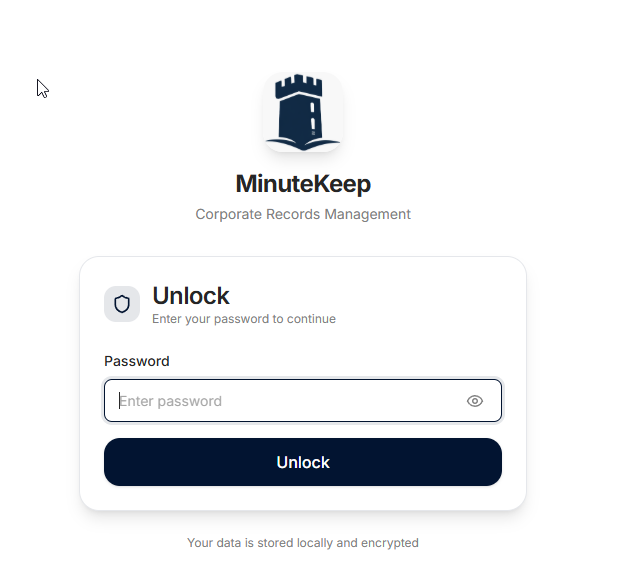
Setting Up the Lock Screen
- Go to Settings > Security
- Enable "Lock Screen Protection"
- Set a password
- Configure auto-lock timeout (5, 15, 30 minutes, or never)
Locking the Application
You can manually lock MinuteKeep at any time by clicking the lock icon in the header.
Audit Trail
Every change in MinuteKeep is recorded in the audit trail.
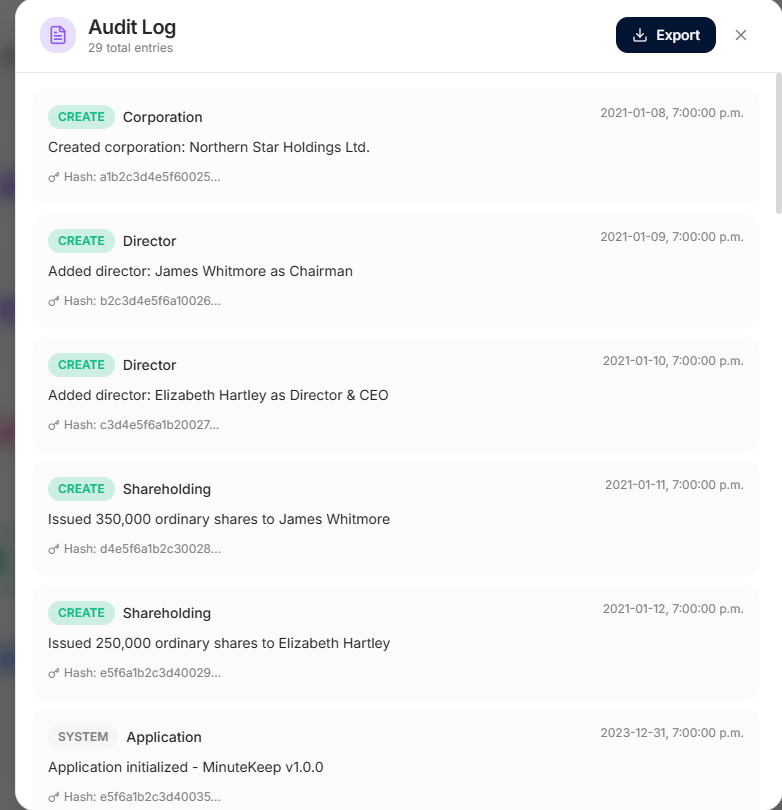
What's Logged
- All CREATE, UPDATE, and DELETE operations
- Timestamp of each action
- Entity type and ID affected
- Summary of changes
Integrity Verification
Audit logs are protected with SHA-256 hash chains. Each entry is cryptographically linked to the previous entry, making it impossible to modify historical records without detection.
Viewing the Audit Trail
Access the audit trail from the Dashboard's "Recent Activity" section or from Settings.
Themes & Dark Mode
Customize the appearance of MinuteKeep.
Dark Mode
Toggle dark mode using the sun/moon icon in the top navigation bar. MinuteKeep can also follow your system's dark mode preference.
Color Themes
Choose from several color themes in Settings to personalize your experience.
Software Updates
MinuteKeep includes automatic update checking.
Checking for Updates
- Go to Settings > About
- Click "Check for Updates"
- If an update is available, click "Download & Install"
- MinuteKeep will restart with the new version
When an update is available for your licensed version, MinuteKeep verifies its signed metadata before installation.
Getting Help
Need assistance? We're here to help.
- Email: support@ownerstate.com
- FAQ: Frequently Asked Questions
When contacting support, please include:
- Your MinuteKeep version (found in Settings > About)
- Your operating system
- A description of the issue
- Screenshots if applicable